
NB! Information is subject to change.
The International UAS Exam is a joint digital entrance exam of the Finnish Universities of Applied Sciences (UAS), used for selecting students to study programmes leading to a bachelor’s degree and conducted in English. The entrance exam is completed by the applicant’s own computer remotely online.
In the autumn joint application, 11 study programmes use the International UAS Exam; please see further information on them here. Regardless of how many study programs you’re applying for, you only need to participate in the International UAS Exam once. Please read the instructions carefully as there have been changes compared to previous exams.
The International UAS Exam is organised on 6 November 2026 from 12:00 o’clock noon onwards (Finnish time, UTC/GMT+2). In the International UAS exam, the applicants’ readiness for UAS studies is assessed. The exam does not include any advance reading materials or pre-assignments.
The entrance exam is used in the following study fields:
- Humanities and Education
- Business Administration, Business Information Technology (BIT)
- Natural Resources
- Tourism and Hospitality
- Seafaring
- Social Services, Health Care, Sports and Exercise, Beauty Care
- Technology
Please check in Table 1 whether your targeted study programmes use the exam. If your targeted study programme does not use the International UAS Exam, please refer to Studyinfo.fi for more information on the programme and admission criteria. In that case, please check whether the programme involves a pre-assignment or a separate entrance exam requiring preparation.
Language requirements
NB! Information is subject to change.
All applicants of the University of Applied Sciences’ Bachelor’s programmes, including native speakers of English, must demonstrate their English language proficiency. Details on the accepted methods for proving language proficiency can be found on this page. Be sure to review the requirements carefully.
To get invited to the International UAS Exam and be selected by the International UAS Exam selection method, the applicants have to prove their English language skills either by an internationally recognized language test or previous studies.
Additionally, to be selected through the certificate-based selection method on matriculation examination and vocational upper secondary qualification, applicants must also prove their English language skills.
Please attach the required document to your Studyinfo application on 17 September 2026 at 15:00 Finnish time (UTC/GMT+3) at the latest.
Identification documents
NB! Information is subject to change.
The applicant needs a valid, acceptable identification document to be able to participate in the International UAS Exam. The passport/identity card has to be valid until 30 October 2026.
The following documents are accepted as proof of identity:
- Passport (preferred option)
- The passport can be either biometric or non-biometric
- If you have a passport, use it, as valid passports are always accepted as proof of identity
- Passports from all countries are accepted as proof of identity
- Biometric EU/EEA identity card
- If you do not have a passport but you have a biometric identity card from an EU/EEA country, it is accepted as proof of identity
- The EU/EEA identity card must have a biometric symbol, as shown below
No other forms of identification documents are accepted. For example, residence permit cards, non-biometric EU/EEA identity cards or identity cards issued by non-EU/EEA countries will not be accepted.
You must be identifiable from the photo on your passport or identity card. Note this especially if it has been a long time since the passport or identity card was issued. You must use your original physical identification document for the pre-identification in the Candour ID application; a photo or copy of your identification document is not acceptable.
Example of the symbol, the colour of which may vary between different EU/EEA countries' identity cards.

For the identification process, you have to submit the following information on the Studyinfo application form:
- A copy of a valid passport or biometric EU/EEA identity card during the application period or by 17 September 2026 at 15:00 Finnish time (UTC/GMT+3) at the latest.
- If you are using a biometric EU/EEA identity card, you must attach a copy of both sides of the identity card to your application form.
- During the application period: The number of the passport or biometric EU/EEA identity card you have attached to the application form.
- Ensure that the passport or identity card number is written correctly. It is the responsibility of the applicant to provide the correct passport or identity card number.
- If the passport or identity card number contains letters, write them in UPPERCASE.
- Use the same passport or biometric EU/EEA identity card for the pre-identification in the Candour ID application as the one whose number was provided in your Studyinfo application form in the section “Passport or biometric EU/EEA identity card (UAS)”. Using a different identification document may result in your pre-identification being rejected, and you may not be able to proceed with the International UAS Exam process.
- If needed, you can update the identification document number to your Studyinfo application by 12 October 2026. In this case, submit a new identification document attachment to the Admissions Services of the university of applied sciences listed as your highest choice on your application, using the International UAS Exam. Please take this into account, for example, if you have renewed your passport.
- See below for detailed instructions on how to find the passport or identity card number on the document.
If the information you submit is incorrect or you do not submit this information to the application by the given time limit, you cannot participate in the International UAS exam and thus not proceed in the International UAS Exam selection process.
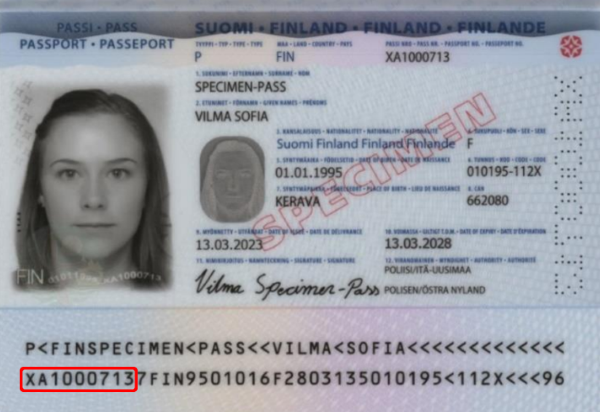
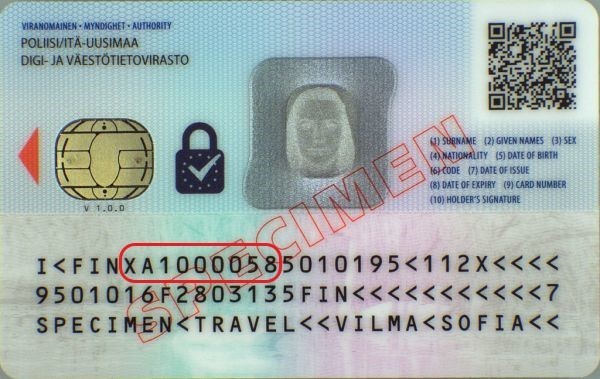
The biometric EU/EEA identity card number may be located in different fields on different national identity cards. The biometric EU/EEA identity card number is typically located in the field labeled "Document number" or "Card number", but it can also be located in other fields. You can verify the correct identity card number from the machine-readable zone (MRZ) on the reverse side of the identity card. The identity card number is located on the first line of the MRZ, starting from the 6th character, see the picture below.
Exam sections, duration and scoring
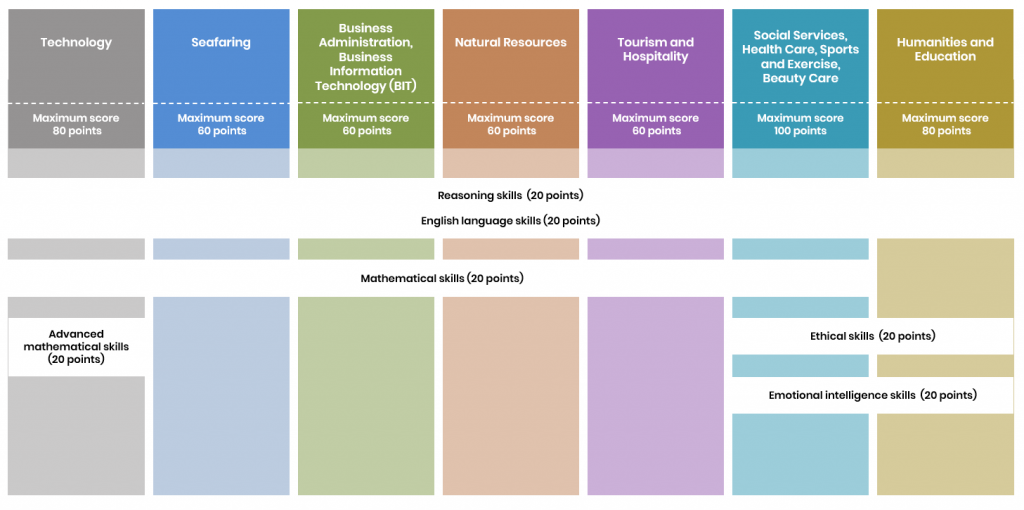
The entrance exam is conducted in the English language. The exam sections and duration of the exam are determined on the basis of the study programmes you apply for. You complete at one time all the exam sections that are included to the study programmes you apply for. The entrance exam includes both common exam sections to all study programmes and field-specific exam sections. The exam sections for each study field are presented in Chart 1. A total score of the exam is the sum score of the exam sections included to your study programme. In order to be selected, you must pass all the exam sections (i.e. reach the minimum pass score per section).
A specific response time has been allocated for each exam section. When the section-specific time is up, the section will close. If you don’t finish the section, its latest version will be saved as your answer. You can complete the sections in any order. Please note that once a section is opened, it needs to be completed, and you cannot return to the section later. In addition to the section-specific times, there is 15 minutes for transitions between sections in the exam.
Common exam sections to all study programmes:
- Reasoning skills (25 minutes): You have to complete this exam section regardless of the programme you apply for. The section assesses your logical reasoning and problem-solving skills. The maximum score in this section is 20 and the minimum pass score is 1. Penalty scores (wrong answers produce minus points) are used in this section. You can also leave a question unanswered. Please have a look at the reasoning skills sample questions.
- English language skills (20 minutes): You have to complete this exam section regardless of the programme you apply for. The section assesses your skills in reading and interpreting texts, such as understanding the relation between different parts of the text, mastering vocabulary and linguistic reasoning. The maximum score in this section is 20 and the minimum pass score is 3. Penalty scores (wrong answers produce minus points) are used in this section. You can also leave a question unanswered. Please have a look at the English language skills sample questions.
Field-specific exam sections:
- Mathematical skills (25 minutes): This exam section is required for the fields of Technology, Business Administration and BIT, Natural Resources, Tourism and Hospitality, Seafaring, Social Services, Health Care, Sports and Exercise and Beauty Care. The contents of the section are the same for all the above-mentioned fields. In this section, your basic mathematical skills are assessed. The focus is on basic calculations, calculating percentages, first-degree equations, geometry, mathematical-logical reasoning and interpreting tables, graphs and diagrams. In this section, you are allowed to use the exam system’s built-in calculator. Do not use any other calculators, calculator applications, or calculator functionalities. Using such tools may result in your exam result being rejected. The maximum score in this section is 20 and the minimum pass score is 1. Penalty scores (wrong answers produce minus points) are used in this section. You can also leave a question unanswered. Please have a look at the mathematical skills sample questions.
Introduction
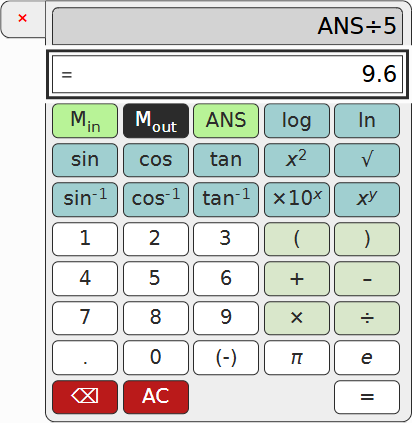
The exam system built-in calculator is available when you are allowed to use a calculator to complete tasks. In sections where the calculator is available, the Calculator button appears on the right-hand side of the applicant's view. The calculator is opened by clicking the button. The calculator can also be opened and closed using a keyboard shortcut or the keyboard.
Calculator’s functions in the exam system:
- addition, subtraction, multiplication and division
- brackets
- squares and square roots
- power of ten and general power
- trigonometric functions (angle values in degrees)
- natural logarithm (ln) and common logarithm (log)
- constant numbers π and e
- result of the previous calculation in the ANS button
- storing the value of an expression in memory Min and reading the value from memory Mout
Using the calculator
Opening and closing the calculator during the exam The calculator can be opened by clicking the Calculator button on the right-hand side of the applicant's view (or by pressing Shift + Alt + L or Cmd + Shift + L). The calculator can be hidden by clicking the x symbol on the left-hand side of the open calculator (or by pressing Shift + Alt + L or Cmd + Shift + L). The buttons for opening and closing the calculator can also be accessed using the keyboard (tab navigation).
Hiding the calculator does not delete the calculation on the calculator screen. Calculations can be partially entered using the keyboard.
Entering expressions and performing calculations
Expressions can be entered in three different ways:- Using the computer keyboard
- The Pi (π) and square root (√) symbols cannot be entered using the keyboard
- Expressions are executed by pressing Enter when the focus is on the input field
- The input field is cleared with the Esc key (corresponds to the AC button on a calculator)
- Exponentiation with the ^ symbol, input example: 5^2
- Inputting the functions sin, cos, tan, asin, acos, atan, ln and log, for example: sin(30) and atan(1)
- By clicking the calculator buttons with the mouse
- The selected symbols are added to the expression in the input field
- The expression is executed by clicking the equal sign
- By navigating with the arrow keys on the computer keyboard
- Switching between the input field and the calculator keyboard: tab / shift-tab
- Confirm your selection with the enter button
- The expression is executed by navigating to the equal sign and pressing enter
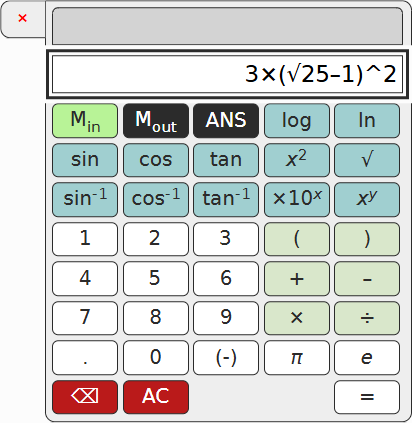
After executing the expression, the input is transferred to the top row of the calculator and the result to the bottom row.
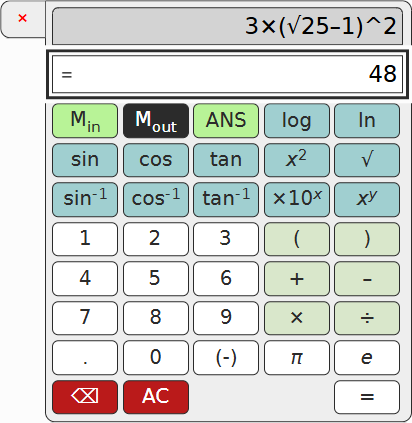
After the calculation, it is possible to- Start entering a new expression. The expression and result are deleted when you start typing a new entry. If the entry after ‘=’ starts with:
- the operators +, -, /, * or an exponent: ANS(*) and the entered operation are recorded as the entry. E.g. + → ANS+.
- Note: the symbol ‘-’ entered on the keyboard is interpreted as a prefix in the new expression, not as an operator!
- another symbol: the expression is replaced with the entered symbol. E.g. 5 → 5 or cos → cos(
- the operators +, -, /, * or an exponent: ANS(*) and the entered operation are recorded as the entry. E.g. + → ANS+.
- Return the calculated/executed expression for editing by clicking on the expression. The expression is transferred to the input field. Alternatively, you can return the expression by navigating to the relevant field using the keyboard (shift+tab) and pressing enter.
- Advanced mathematical skills (30 minutes): This exam section is required for the field of Technology. The section assesses your abilities in mathematics and physics. Your mathematical skills are assessed by questions related to reducing rational expressions, solving equations, level geometry and trigonometry (e.g. right-angled triangle). Your physics skills are assessed by questions related to basic knowledge in physical phenomena and calculation formulas, your ability to calculate and reason on the basis of basic physical knowledge and given models, and your ability to interpret charts, graphs and diagrams. In this section, you are allowed to use the exam system’s built-in calculator. Do not use any other calculators, calculator applications, or calculator functionalities. Using such tools may result in your exam result being rejected. The maximum score in this section is 20 and the minimum pass score is 1. Penalty scores (wrong answers produce minus points) are used in this section. You can also leave a question unanswered. Please have a look at the advanced mathematical skills sample questions.
Introduction
The exam system built-in calculator is available when you are allowed to use a calculator to complete tasks. In sections where the calculator is available, the Calculator button appears on the right-hand side of the applicant's view. The calculator is opened by clicking the button. The calculator can also be opened and closed using a keyboard shortcut or the keyboard.
Calculator’s functions in the exam system:
- addition, subtraction, multiplication and division
- brackets
- squares and square roots
- power of ten and general power
- trigonometric functions (angle values in degrees)
- natural logarithm (ln) and common logarithm (log)
- constant numbers π and e
- result of the previous calculation in the ANS button
- storing the value of an expression in memory Min and reading the value from memory Mout
Using the calculator
Opening and closing the calculator during the exam The calculator can be opened by clicking the Calculator button on the right-hand side of the applicant's view (or by pressing Shift + Alt + L or Cmd + Shift + L). The calculator can be hidden by clicking the x symbol on the left-hand side of the open calculator (or by pressing Shift + Alt + L or Cmd + Shift + L). The buttons for opening and closing the calculator can also be accessed using the keyboard (tab navigation).
Hiding the calculator does not delete the calculation on the calculator screen. Calculations can be partially entered using the keyboard.
Entering expressions and performing calculations
Expressions can be entered in three different ways:- Using the computer keyboard
- The Pi (π) and square root (√) symbols cannot be entered using the keyboard
- Expressions are executed by pressing Enter when the focus is on the input field
- The input field is cleared with the Esc key (corresponds to the AC button on a calculator)
- Exponentiation with the ^ symbol, input example: 5^2
- Inputting the functions sin, cos, tan, asin, acos, atan, ln and log, for example: sin(30) and atan(1)
- By clicking the calculator buttons with the mouse
- The selected symbols are added to the expression in the input field
- The expression is executed by clicking the equal sign
- By navigating with the arrow keys on the computer keyboard
- Switching between the input field and the calculator keyboard: tab / shift-tab
- Confirm your selection with the enter button
- The expression is executed by navigating to the equal sign and pressing enter
After executing the expression, the input is transferred to the top row of the calculator and the result to the bottom row.
After the calculation, it is possible to- Start entering a new expression. The expression and result are deleted when you start typing a new entry. If the entry after ‘=’ starts with:
- the operators +, -, /, * or an exponent: ANS(*) and the entered operation are recorded as the entry. E.g. + → ANS+.
- Note: the symbol ‘-’ entered on the keyboard is interpreted as a prefix in the new expression, not as an operator!
- another symbol: the expression is replaced with the entered symbol. E.g. 5 → 5 or cos → cos(
- the operators +, -, /, * or an exponent: ANS(*) and the entered operation are recorded as the entry. E.g. + → ANS+.
- Return the calculated/executed expression for editing by clicking on the expression. The expression is transferred to the input field. Alternatively, you can return the expression by navigating to the relevant field using the keyboard (shift+tab) and pressing enter.
- Ethical skills (10 minutes): This exam section is required for the fields of Social Services, Health Care, Sports and Exercise, Beauty Care, and Humanities and Education. The contents of the section are the same for all the above-mentioned fields. In this section, your skills in recognising the ethical nature of statements are assessed. The maximum score in this section is 20 and the minimum pass score is 1. Penalty scores (wrong answers produce minus points) are used in this section. You can also leave a question unanswered. Please have a look at the ethical skills sample questions.
- Emotional intelligence skills (10 minutes): This exam section is required for the fields of Social Services, Health Care, Sports and Exercise, Beauty Care, and Humanities and Education. The contents of the section are the same for all the above-mentioned fields. In this section, your capabilities in emotional intelligence skills, such as recognizing and controlling emotions, are assessed. The maximum score in this section is 20 and the minimum pass score is 1. Penalty scores (wrong answers produce minus points) are used in this section. You can also leave a question unanswered. Please have a look at the emotional intelligence skills sample questions.
Chart 1. Exam sections.
Identification process
NB! Information is subject to change.
You have to identify yourself to be able to participate in the International UAS Exam and proceed in the International UAS Exam selection process.
The identification process consists of two phases: 1) pre-identification and 2) identification on the exam day.
1. Pre-identification (before the exam)
Before the exam, you have to perform the pre-identification in the Candour ID mobile application during the period from 29 October at 8:00 Finnish time (UTC/GMT+2) to 30 October 2026 at 15:00 Finnish time (UTC/GMT+2).
You can check the status of your pre-identification anytime by logging in to the page https://login.uasexam.fi/ using your passport or biometric EU/EEA identity card number and the PIN code you chose in your application.
You can perform the pre-identification via the login page (https://login.uasexam.fi/). You will also receive an invitation to the pre-identification to the email address provided on your Studyinfo application form. Please note that the delivery of the email may take some time. The email will be sent only once so please make sure that you have space in your inbox. If necessary, also check your spam and other folders. If you can’t find the invitation to the pre-identification in your email, you must proceed with the pre-identification via the login page.
In the login page, please submit the same passport or biometric EU/EEA identity card number as provided in the “Passport or biometric EU/EEA ID card (UAS)” section, and the same PIN code as in the “International UAS Exam selection method” section of your Studyinfo application. If you don’t remember your PIN code, please check it from your own Studyinfo application.
Only those applicants who have submitted an acceptable proof of English language skills, an approved identification document via the Studyinfo application form, and paid the application fee (if required) by the deadline can perform the pre-identification.
You need the following for the pre-identification:
- Passport or biometric EU/EEA identity card. The passport/identity card has to be valid until 30 October 2026.
- Perform the pre-identification using the same passport or biometric EU/EEA identity card as the one whose number was provided in your Studyinfo application in the section “Passport or biometric EU/EEA identity card (UAS)”. Using a different identification document may result in your pre-identification being rejected, and you may not be able to proceed with the International UAS Exam process. Please note that residence permit cards, non-biometric EU/EEA identity cards, or identity cards issued by non-EU/EEA countries will not be accepted.
- You must use your original physical identification document for the pre-identification in the Candour ID application; a photo or copy of your identification document is not acceptable.
- You must be identifiable from the photo on your passport or identity card. Note this especially if it has been a long time since the passport or identity card was issued.
- A mobile phone with the Candour ID application installed (available in App Store or Google Play). Make sure you have the latest version of the application installed.
2. Identification on the exam day
Those applicants who have successfully performed the pre-identification will be able to participate in the exam. On the exam day, you have to identify yourself again while logging in to the exam. This means that you will first proceed to the Candour’s service to take a selfie with your computer’s camera.
Performing the pre-identification on 29-30 October 2026
NB! Information is subject to change.
The Candour ID mobile application is used for identification. The pre-identification has to be performed from 29 October 2026 at 8:00 Finnish time (UTC/GMT+2) to 30 October 2026 at 15:00 Finnish time (UTC/GMT+2). If you do not perform the pre-identification within the given timetable, you cannot be invited to the International UAS Exam, and you cannot proceed in the exam selection process.
Before starting the pre-identification, make sure you have your original physical passport or biometric EU/EEA identity card available (please note that residence permit cards, non-biometric EU/EEA identity cards, or identity cards issued by non-EU/EEA countries will not be accepted) and download the Candour ID application to your mobile phone. If you already have the application installed, make sure it is updated to the latest version. When starting the pre-identification process, open the Play Store or App Store link from the pre-identification web page (or visit https://portal.candour.fi/mobileRedirect) on your mobile device. Check if any updates are available for the app.
During the pre-identification process, follow the instructions provided by the Candour ID application. A reliable internet connection is required to complete the pre-identification process, and the applicant is responsible for ensuring the functionality of the internet connection. Make sure to stay on the same network during the entire pre-identification process, so that your IP address does not change. Complete the pre-identification in one session without long breaks, to avoid connection issues. Make sure that cookies are allowed in your browser. If you encounter any issues, try using a different browser. Please note that the pre-identification process varies slightly depending on your phone type and the identification document you are using.
You have to perform the following steps in the Candour ID application during the pre-identification:
- Use the same passport or biometric EU/EEA identity card in the Candour ID as the one whose number was provided in your Studyinfo application in the section “Passport or biometric EU/EEA ID card (UAS)”.
- Please note that residence permit cards, non-biometric EU/EEA identity cards or identity cards issued by non-EU/EEA countries are not accepted for the pre-identification. Using a non-accepted document during the pre-identification will result in a failed identification, even if your application was submitted with an acceptable document such as a passport.
- Take a picture of your passport/identity card
- You must use your original physical identification document for the pre-identification in the Candour ID application; a photo or copy of your identification document is not acceptable
- Read the information of your passport/identity card
- If you are using a biometric passport or biometric identity card: Read the information from the chip of your passport/identity card according to the instructions provided by the application
- If you don’t have a biometric passport: You can proceed with optical verification (without chip reading) according to the instructions provided by the application
- If reading the chip of your biometric passport or biometric identity card is not successful: You can proceed with optical verification (without chip reading) according to the instructions provided by the application
- Take a selfie
- Please note that a live photo is required for identification (photos or screenshots are not accepted)
- The application verifies that
- the number of your passport/identity card matches with the number provided in Studyinfo,
- the passport/identity card is valid
- the person in the selfie matches the facial image read from the passport/identity card
- The Candour ID informs you if the identification has been successful. Make sure to return to the browser and wait patiently until you are redirected to the International UAS Exam info page
- If necessary, explore the Candour guide, where you can find detailed instructions
If you encounter issues during the pre-identification, the Candour ID application will provide additional instructions as you proceed.
Important: If you experience any issues during pre-identification, take a screenshot of the exact error or problem (for example, the error message in the Candour ID app). When contacting Admission Services, attach the screenshot to your message to ensure the issue can be reviewed more efficiently.
You have three attempts to complete the pre‑identification verification. Use all three attempts if you do not succeed earlier. Each attempt must include all of the following steps:
- picture of your passport/identity card
- chip or optical reading
- selfie
After each attempt, the Candour ID application will show how many attempts you have remaining.
If you do not successfully complete the verification within three attempts:
- your pre‑identification will be automatically forwarded for manual review
- you will receive an email notification once this happens
- you can check the status of your pre‑identification at any time on the login page: https://login.uasexam.fi/
Manual review
If you have used all three attempts and have not succeeded with the pre-identification in the Candour ID application, your pre-identification will be forwarded for manual review. Your pre-identification can still be approved manually if the identification requirements are met and you can be identified based on the data stored during the pre-identification attempt in the Candour ID application. Otherwise, your pre-identification will be rejected.
You will be informed via email by 4 November 2026, at the latest, whether your pre-identification has been approved or rejected based on the manual review. The cases will be reviewed manually during a designated time period, so please wait patiently for the information via email.
If the manual review is approved, you will receive an invitation to the exam to the email address you provided in your Studyinfo application. If the manual review is rejected, you will be notified by email, and you cannot continue the pre-identification anymore nor proceed in the International UAS Exam selection process.
Monitoring
NB! Information is subject to change.
Your activities during the exam are monitored in the exam system by SMOWL CM proctoring software. SMOWL CM proctoring software stores frontal and external camera images, screenshots of your computer screen, audio recordings, and all computer activities during the exam, including visited websites and opened applications. The software also identifies any peripherals or external devices connected to the computer. Monitoring ensures that the applicant completes the exam independently, without the help of anybody or anything else.
If you need help with the use of SMOWL, please find more information on SMOWL’s website.
You need to download and install SMOWL CM well before the exam. You will receive the download link for SMOWL CM by email once your pre-identification is completed successfully. Alternatively, the download link is available on the login page (https://login.uasexam.fi/) once your pre-identification is completed successfully. Please note that the download link is personal and should not be shared. If you have already installed SMOWL CM, make sure you have the latest version updated well before the exam.
The SMOWL CM is only compatible with desktop computers or laptops, so it cannot be downloaded onto a tablet or mobile phone. Additionally, SMOWL CM is not compatible with Chrome OS, so you cannot complete the exam on a Chromebook (please see Hardware and network requirements). It is important that SMOWL CM is installed on a personal computer, as corporate computers may have access restrictions that could prevent the proctoring software from functioning properly.
Make sure that screen recording permissions are granted for SMOWL CM before starting your exam. This is essential for all users, but especially important for those using a Mac, as macOS requires manual permission settings. You can find detailed instructions on how to allow screen recording on SMOWL’s help page. If permissions are not granted, SMOWL CM will not be able to capture screenshots of your computer screen during the exam, which may result in your exam being rejected.
If you are having trouble installing SMOWL CM on your computer, please see the instructions on SMOWL’s website: Downloading and installing SMOWL CM.
Monitoring during the exam
The monitoring begins the moment the exam starts. Monitoring finishes when you have completed the exam. After the exam, the monitoring data of the applicants is reviewed. Based on this review, applicants’ exam results may be dismissed if they have acted contrary to the guidelines for exam completion.
After logging in to the exam, before your personal exam starting time, you must set up and activate your frontal camera, microphone, external camera and SMOWL CM. You can see from the SMOWL monitoring block that monitoring is active when the icons are blue (frontal camera, microphone, external camera and SMOWL CM), please see the images below. Your face must be clearly visible and recognizable from the front at all times in the monitoring block. Additionally, you must remain visible in the external camera view throughout the entire exam, as per the instructions. Please note that images captured with the frontal camera and the external camera must show different camera angles. For example, if images are captured only from the frontal camera or only from the external camera, your exam will be rejected. Do not leave the SMOWL monitoring block or the external camera view even for a moment after the exam has started.
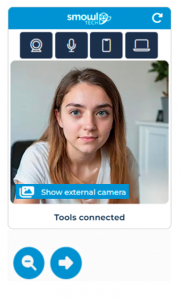
Picture below illustrates the external camera view on your device (mobile phone or tablet). You should position the external camera in landscape mode to one side of your desk, so that you can see your computer, your hands, and yourself as it appears in the picture below.

Instructions for using and positioning an external camera device
NB! Information is subject to change.
1. Before you start
Use another device, a phone or tablet, as an external camera. Please ensure the following before connecting your external camera device:
- Your desk is completely clear of all unnecessary and banned items.
- Your external camera device has enough battery or is connected to a charger.
- Chrome or Edge browser is installed to your external camera device.
- You do not need to install any other application on your external camera device.
2. Look at the example of correct external camera placement
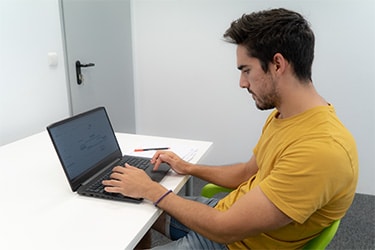
To ensure proper monitoring, the external camera view must capture:
- A side profile of your face (you must be clearly recognizable).
- Your entire desk surface, including the area around your computer. The camera must be placed higher than the desk so that both the desk surface and the computer are clearly visible from above at an angle, without any objects blocking the view.
- Your computer from the side.
- The wall directly in front of your desk – you must be seated facing a wall, and this wall must be visible in the external camera view from a rear-side angle as shown in the picture above.
Incorrect placement may lead to your exam being rejected.
3. How to set up the external camera device
Follow these steps carefully:
- Place the external camera device on either the left or right side of your desk.
- Use landscape mode (horizontal).
- Position the external camera device about 30 cm above desk level, tilted slightly toward your computer.
- Keep the external camera device 60 cm to 1.5 m away from your computer — not too close.
- Make sure it captures a wide-angle side view, including:
- your side profile,
- your entire desk surface from above (without any objects blocking the view),
- your computer from the side, and
- the wall directly in front of your desk, as you must be seated facing a wall
4. Examples of incorrect placement
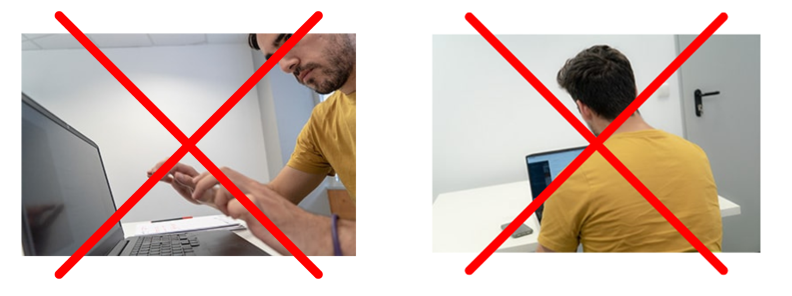
- Do not place the external camera device too close to you (e.g., next to the computer screen).
- Do not place the external camera device at the same level as the desk or below it.
- Do not place the external camera device behind or in front of you.
5. Examples of banned items – Please refer to the guidelines for more detailed instructions on banned items.
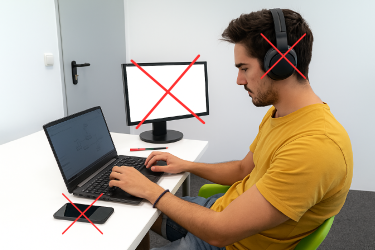
Remember: Headphones and earbuds are not allowed at any point during the exam — not on your head, neck, or desk.
6. Connecting the external camera device
- Open the camera application on your external camera device.
- Scan the QR code in the SMOWL monitoring block using the external camera device’s built-in camera application.
(Do not use the Candour ID application’s internal camera for this.) - Finish connecting the external camera device by following the instructions shown in the external camera device’s browser (Chrome or Edge).
7. More information
Please read SMOWL’s detailed instructions on their website.
Guidelines for exam completion
NB! Information is subject to change.
Applicants must follow these guidelines:
1. You must complete the exam independently.
- No one else is allowed to be visible on the frontal camera or the external camera.
- No one else is allowed in the room while you are taking the exam.
- Make sure that you complete the exam in a quiet environment without other people present.
- No form of remote connection or communication with others is allowed during the exam. This includes messaging apps, phone calls, video calls, bluetooth connections, remote desktop applications (e.g., AnyDesk, TeamViewer or Chrome Remote Desktop), or any similar means.
2. Seeking help from any external source, including people, is strictly prohibited.
- You are allowed to use only the exam system during the exam.
- Close other programs, applications, remote desktop applications, software, tools, websites, browsers, browser tabs, browser windows and artificial intelligence tools before the exam starts.
- Make sure that remote desktop applications (e.g., AnyDesk, TeamViewer or Chrome Remote Desktop) are fully closed (so they are not running in the background) by following the instructions in the SMOWL guide. Any presence of remote desktop applications will lead to your exam being rejected.
- Turn off all notifications from WhatsApp, email, iMessage, Slack, or any related program to ensure no pop-up notifications appear.
- Close other programs, applications, remote desktop applications, software, tools, websites, browsers, browser tabs, browser windows and artificial intelligence tools before the exam starts.
- You are only allowed to use the computer/laptop on which you are taking the exam.
- The use of mobile phones, tablets, additional screens, laptops, computers, virtual machines, USB-connected devices, headsets, headphones, earbuds, earplugs, smart glasses or other smart devices, or books is strictly prohibited.
- The use of a USB-connected mouse and a USB-connected webcam is allowed.
- Screen sharing or streaming of any kind is strictly prohibited during the exam.
- Additional monitors, TV screens, or any other display devices must not be present in the camera view at any time during the exam — even if they are turned off or disconnected. Any such presence may lead to your exam being rejected.
- The use of mobile phones, tablets, additional screens, laptops, computers, virtual machines, USB-connected devices, headsets, headphones, earbuds, earplugs, smart glasses or other smart devices, or books is strictly prohibited.
- Clear your desk of all unnecessary or banned items mentioned above before the exam starts. Note: You are allowed to take notes only on paper during the exam.
3. SMOWL monitoring of your exam must be activated throughout the exam.
- Your frontal camera, external camera, microphone & SMOWL CM must be set up, activated and used as instructed throughout the exam.
- You must be clearly visible and recognizable on the frontal camera and the external camera throughout the exam.
- Make sure that the lighting conditions are adequate in your exam environment.
- Once the exam time has started, you are not allowed to leave your seat, such as using the restroom.
4. Recording, copying, or sharing the exam content is strictly prohibited.
Violations of exam guidelines
After the exam, the monitoring data of the applicants is reviewed. Your exam result will be dismissed if violation of exam guidelines is detected in the monitoring data.
Participating in the exam and exam schedule
NB! Information is subject to change.
The International UAS Exam is organised on 6 November 2026 from 12:00 o’clock noon onwards (Finnish time, UTC/GMT+2). Starting the exam is going to be phased in a way that the first applicant starts the exam at 12:00 noon Finnish time (UTC/GMT+2) and the last applicant at 12:15 Finnish time (UTC/GMT+2) at the latest. You will see your personal exam starting time only after you have logged in to the exam system. You can log in to the exam system on the day of the exam starting from 11:00 Finnish time (UTC/GMT+2). You must log in no later than 11:40 Finnish time (UTC/GMT+2).
Note: Finland changes between standard time (UTC+2) and daylight saving time (UTC+3). On 6 November 2026, Finland is on standard time (UTC+2).
Make sure to convert your local time accurately to Finnish time to avoid being late for your exam. The exam is organised only once on 6 November and cannot be completed at another time.
Logging in to the exam
You can log in to the exam on the exam day through the login page: https://login.uasexam.fi/. When logging in, please submit the same passport or biometric EU/EEA identity card number as provided in the “Passport or biometric EU/EEA ID card (UAS)” section, and the same PIN code as in the “International UAS Exam selection method” section of your Studyinfo application. If you don’t remember your PIN code, please check it from your own Studyinfo application.
NB: Only those applicants who have successfully performed the pre-identification will be able to log in to the exam through the login page.
Invitation to the exam
In addition to the login page, on 5 November 2026 at the latest, you will receive an invitation to the exam to the email address you provided in your Studyinfo application. The invitation includes a personal login link to the exam. Please note that the link is personal and should not be shared. The email will be sent only once so please make sure that you have space in your inbox. If necessary, also check your spam and other folders.
If you can’t find the invitation to the exam in your email, you must read the important exam information provided in the invitation via the login page (https://login.uasexam.fi/), starting from 5 November. On the exam day you must log in to the exam via the login page.
NB: The invitation to the exam will be sent only to those applicants who have successfully performed the pre-identification.
Identification on the exam day
On the exam day, you must identify yourself again during exam login. When logging in, you will first proceed to Candour’s service and take a selfie using your computer’s camera. The person in the selfie must be recognizable as the same person whose facial image was captured during the pre-identification.
When taking a selfie, make sure you have adequate light conditions and that your face is clearly visible and the selfie you take is sharp.
- Do not have bright lights, windows, or light sources directly behind you. Backlighting can make your face appear dark or unclear.
- Avoid light reflections on your face, glasses, or screen, as they can interfere with facial recognition.
- Do not use any filters or effects on your camera image. These may lead to automatic rejection during the identity verification process.
You have three attempts to identify yourself.
- If your identification fails three times due to poor image quality (for example blurry, grainy or too dark selfies), you will still be allowed to proceed to the exam. In this case, your exam identification will be reviewed manually after the exam. If your identity cannot be reliably confirmed from the selfies, your identification and your exam result may be rejected.
- If your exam result is dismissed because your identification is not accepted after the manual review, you will see this information in the Entrance Exam Score Service when the results are published.
- If your identification fails for reasons other than poor image quality, you will not be allowed to proceed to the exam after three failed attempts.
We recommend testing your computer camera in advance, as it is required for identification and helps avoid technical issues during login. You can access the camera test tool here: https://portal.candour.fi/cameraTest
Preparations for SMOWL monitoring
After identifying yourself, you will proceed to the exam system’s waiting page to complete preparations related to SMOWL monitoring. On the waiting page, the exam system tells you when your exam starts. Please follow the exam system’s instructions.
Important: Monitoring starts from the moment your personal exam time begins. There will be no extra time given for setting up your cameras, microphone, or any other technical preparations after that point. After your personal exam time begins, no other person is allowed to be visible on the frontal camera or the external camera. Applicants’ exam results may be dismissed if they have acted contrary to the guidelines for exam completion.
Therefore, you must:
- Log in early, at 11:40 Finnish time (UTC/GMT+2) at the latest
- Make sure all technical requirements (frontal camera, microphone, external camera and SMOWL CM, internet connection, lighting, etc.) are fully set up before your personal exam starting time
If your internet connection is lost, you can re-enter the exam via the email link or the login page by completing the identification again. Your exam time keeps running also when you are logged out from the exam system. In these situations, SMOWL CM may store activities that could result in your exam being rejected.
Hardware and network requirements
Note: Hardware requirements are subject to updates; please check the detailed instructions before participating in the exam.
The International UAS Exam is a digital exam, completed by the applicant’s own desktop computer or laptop. You cannot complete the exam with a mobile phone or tablet. For more detailed instructions on prohibited and allowed devices during the exam, please see the exam guidelines section.
Use the up-to-date version of the Chrome browser. In case of problems, you can try using an updated version of the Microsoft Edge browser. Do not use other browsers.
Please ensure that, on the day of the exam, you have access to a computer that meets the requirements and has a reliable internet connection. We recommend the use of a fixed broadband connection. The applicant is responsible for the functionality of the internet connection and the computer, including its power supply. The universities of applied sciences cannot be held responsible for problem situations related to taking the exam, due to applicant’s hardware or software, or the stability of the internet connection.
We recommend that you use a mouse to navigate in the exam system instead of the keyboard.
Browser extensions might disrupt the completion of the exam, so we recommend that you disable or turn them off before logging in to the exam. Please see further instructions as to how to disable extensions in Chrome browser. Using other than commercially available VPN softwares from reputable vendors may obstruct the completion of the exam. An antivirus may prevent SMOWL CM from accessing your microphone and/or camera. If you're having trouble with SMOWL CM accessing one of those, please disable your antivirus for the duration of the exam.
Please enable JavaScript and cookies in your browser. At https://browserinfo.valluexam.fi you can check your browser version, screen resolution and whether JavaScript and cookies are enabled. Check your browser settings to make sure your browser version is up to date and update if necessary.
Use the following operating systems:
- Windows 11 or more recent versions
- macOS 15 Sequoia or more recent versions
- Ubuntu Linux 22.04 LTS
Check your computer's settings to make sure your operating system is up to date and update if necessary.
To take the exam, your computer must have:
- A camera with a minimum resolution of 640x640 pixels (a built-in-camera or a webcam connected via USB). Virtual cameras are not allowed. Turn off any video streaming (or virtual camera) software you might have installed, as it can block access to the camera during the exam
- A microphone (any type of microphone, internal or external)
Privacy policy
The applicant performs the pre-identification in the Candour ID application. If the applicant does not succeed with the pre-identification in the Candour ID application, their pre-identification will be forwarded for manual review. In the manual process, the applicant’s pre-identification data is reviewed by Vallu entrance examination service operators and, based on this review, the applicant’s pre-identification is either approved or rejected. During the pre-identification, Candour forwards the facial image of the applicant to Vallu entrance examination service. In the identification on the exam day, the selfie taken by the applicant is compared to the facial image stored during the pre-identification. The purpose of identification is to verify the applicant’s identity. The data collected during the exam will be stored only for the necessary time period after the exam. Collecting and storing data is compatible with the European General Data Protection Regulation (GDPR). The servers are located in the European Union.
Vallu entrance examination service forwards the applicant’s name and email address, and the facial image of the applicant captured during the pre-identification to SMOWLtech via a technical interface. The facial image is used in SMOWL proctoring software as a registration image and during the exam as a reference image for SMOWL monitoring, against which images taken by the frontal camera and external camera during monitoring are compared.
SMOWL CM proctoring software stores frontal camera and external camera images, screenshots of applicant’s computer screen, audio recordings, and all computer activities during the exam, including visited websites and opened applications. The purpose of monitoring is to ensure that the applicant completes the exam independently, without the help of anybody or anything. Monitoring is conducted automatically during the exam to secure legal protection and parity of applicants. The applicant may refuse monitoring or interrupt it. Refusing or interrupting monitoring means that the applicant may not be selected by the International UAS Exam selection method. After the exam, the applicants’ monitoring data is reviewed by Vallu entrance examination service operators and, based on this review, applicants may be dismissed if they have acted contrary to the guidelines for exam completion. The data stored during the entrance exam will be stored only for the necessary time period after the entrance exam. Collecting and storing data is compatible with the EU’s General Data Protection Regulation (GDPR). The servers are located in the European Union.
- More information on Candour’s privacy policy
- More information on SMOWL’s privacy policy
- More information on Vallu entrance examination service’s privacy policy
Frequently Asked Questions about the International UAS Exam
Pre-identification
Do I need to register separately for the SMOWL monitoring software?
There is no separate registration for the SMOWL monitoring software. The pre-identification only involves identification in the Candour ID application.I can't find the invitation to pre-identification in my email?
You can conduct the pre-identification via the following link: https://login.uasexam.fi/. When logging in, please submit the same passport/identity card number and the PIN code as provided in your Studyinfo application. The pre-identification has to be completed on 30 October 2026 at 15:00 Finnish time (UTC/GMT+2) at the latest.I'm not sure what my pre-identification status is?
You can check the status of your pre-identification by logging in to the page https://login.uasexam.fi/. When logging in, please submit the same passport/identity card number and the PIN code as provided in your Studyinfo application. After logging in, you can see the status of your pre-identification and, if necessary, proceed with the pre-identification. The pre-identification has to be completed on 30 October 2026 at 15:00 Finnish time (UTC/GMT+2) at the latest.I don’t have the original physical identification document I provided in my Studyinfo application – what should I do?
If you do not have the original physical identification document that you submitted in your Studyinfo application, you may attempt the pre-identification using another valid and acceptable identification document. The identification document must meet the general requirements for identification as instructed. The other identification document must be your own. In this case your pre-identification will be forwarded for manual review. Please note that the approval in the manual review cannot be guaranteed if the identification document differs from the one provided in the application.I haven't completed the pre-identification on time, what should I do?
You cannot complete the pre-identification after 30 October 2026 at 15:00 Finnish time (UTC/GMT+2). If you did not complete the pre-identification within the given timetable, you cannot be invited to the exam, and you cannot proceed in the International UAS Exam selection process. The requirements related to the pre-identification are explained on the UASinfo website and on the Studyinfo application form. If you did not complete the pre-identification within the given timetable, universities of applied sciences follow a consistent procedure, and no one's situation can be corrected at this phase.Participating in the exam
How can I prepare for the International UAS Exam and are there any preparation courses?
In the International UAS Exam, the applicants’ readiness for UAS studies is assessed. There is no advance reading material or pre-assignments. You can practise for the exam using the example questions available on our website. We do not organise any preparatory courses, and we cannot recommend any external companies offering such courses, as they operate independently from our admissions process.Do I need the Candour ID mobile application on the exam day?
You do not need the Candour ID application on the exam day. On the exam day, you have to identify yourself again while logging in to the exam. This means that you will first proceed to Candour's service to take a selfie with your computer's camera.Can someone else help me with technical issues before or during the exam?
Before the exam starts, another person is allowed to help you with technical setup (such as camera position, internet connection, or logging in). However, once your personal exam time begins, no one else is allowed to be present in the room or assist you in any way. Any form of help or presence of another person during the exam, including being visible on the camera or audible through the microphone, is strictly prohibited and will lead to disqualification.Can I use the restroom during the exam?
You cannot use the restroom after the exam has started. You must be clearly visible and recognizable on the frontal camera and the external camera throughout the exam. SMOWL monitoring starts from the moment your exam starts. After the exam has started, you can no longer leave your computer. Before the exam starts, you can still, for example, use the restroom.Can I take notes during the exam?
You are allowed to take notes on paper during the exam, but make sure that you are clearly visible in the SMOWL monitoring block and on the external camera throughout the exam. Please note that taking notes on a phone, laptop, or tablet is prohibited.Can I use a calculator during the exam?
In the advanced mathematical skills section and the mathematical skills section, you are allowed to use the exam system's built-in calculator. Do not use any other calculators, calculator applications, or calculator functionalities. Using such tools may result in your exam result being rejected.How do I know how much exam time is left?
You can keep track of the exam time by following the clock at the upper right-hand corner of the exam system.How do I know that my answer has been saved?
”Saved” notification will appear for a while above the option that you selected, when the system has saved your selected answer. If you use your keyboard for navigating and responding in the exam, please ensure that the response option you chose does not change.What happens to my answers if I do not complete the exam on time?
If you do not complete a section, its latest version will be saved as your answer.How do I know if my exam has been dismissed based on monitoring?
After the exam, the monitoring data of the applicants is reviewed. Based on this review, applicants’ exam results may be dismissed if they have acted contrary to the guidelines for exam completion. If your exam result is dismissed, you will find the information from the Entrance Exam Score Service. The Entrance Exam Score Service opens on 19 November 2026 at the latest.Individual arrangements
NB! Information is subject to change.
Individual arrangements refer to customized practical arrangements in an entrance examination situation. You may be granted individual arrangements due to illness, disability, dyslexia, or some other specific reason.
If, due to disability, disease, dyslexia or some other specific reason, you need individual arrangements during the entrance exam (e.g. additional time, tasks without pictures for applicants using a screen reader), you have to fill in a written request for individual arrangements. Please attach a medical certificate or other equivalent attestation on the nature of your disability or disease. The statement should clearly state why you need individual arrangements and explicitly detail the type of individual arrangements recommended for you. The applicants’ situations are assessed on a case-by-case basis.
Submit your request for individual arrangements, with the necessary attachments, by 17 September 2026 at 15:00 Finnish time (UTC/GMT+3) to the Admissions Services of the university of applied sciences using the International UAS Exam that is highest on your application form. Check the instructions below whether the request for individual arrangements shall be submitted on paper or in electronic form to the university of applied sciences in question.
Individual arrangements may be granted on the basis of an application for individual arrangements submitted after the deadline only if an impediment requiring individual arrangements arises or is established after the deadline. In this case, please submit your request for individual arrangements without delay to the admissions services of the university of applied sciences using the International UAS Exam that is highest on your application form. The university of applied sciences will decide what individual arrangements can be made for the applicant. Individual arrangements may not be possible if the applicant contacts the services too late for the admission exam or if it is otherwise found impossible to make individual arrangements.
- arrangements for the entrance examination due to a visual impairment, such as if you use screen reader software, require an image-free exam, or if your visual impairment otherwise affects your ability to complete the exam.
- The International UAS Exam may contain images, infographics, mathematical formulas, notation, and other mathematical symbols.
- If necessary, you may be provided with an image-free exam, which does not contain any images or infographics.
- If you complete the mathematical skills section and/or the advanced mathematical skills section in an image-free exam, you can choose during the exam how you want mathematical formulas, notation, and other mathematical symbols to be presented:
- Screen reader version: Mathematical notation is presented in a format that can be read by screen reader software (the notation system used in Luetus books and the Luetus program).
- Visual version: Mathematical notation is presented in the same way as in the standard exam with images, meaning that you view the mathematical formulas and symbols visually.
- You can try selecting between the screen reader version and the visual version in the exam system interface using the sample questions without images for the mathematical skills and advanced mathematical skills sections.
- Apply for individual arrangements also if you require other adaptations due to visual impairment, such as the use of inverted colours in the exam system or screen magnification software.
- modified tasks (i.e. easier exam questions)
- extra points (compensatory or bonus points)
- the possibility to skip any part of the exam
- the possibility to use a dictionary due to insufficient language skills
- extra time due to insufficient language skills
Individual arrangements
You can request individual arrangements for completing the International UAS Exam.How do I request individual arrangements for the entrance exam?
You can request individual arrangements with a separate application form for individual arrangements. Submit your request to the Admissions Services of the university of applied sciences using the International UAS Exam that is first on your application form.Submit your request for individual arrangements, with the necessary attachments, by 17 September 2026 at 15:00 (UTC/GMT+3) to the Admissions Services of the university of applied sciences using the International UAS Exam that is first on your application form.
Some universities of applied sciences use a printable paper form for requesting individual arrangements. This paper form for requesting individual arrangements used in those UAS is downloadable here: The paper form for individual arrangements.
The following UAS use an electronic form for requesting individual arrangements: Metropolia University of Applied Sciences (Metropolia), Satakunta University of Applied Sciences (SAMK), Tampere University of Applied Sciences (TAMK), South-Eastern Finland University of Applied Sciences (Xamk).
If you request individual arrangements in these universities of applied sciences, please use the electronic form for requesting individual arrangements. Do not use the paper form in these cases.
Please fill in the form carefully. In addition to your request for individual arrangements, please submit your personal and contact details.
The application form for individual arrangements is only used for requesting individual arrangements for the International UAS Exam. When applying for individual arrangements for any other entrance examination, please follow the instructions of those universities of applied sciences you have applied for.
Attachments to the application form for requesting individual arrangements - attestations and statements
Please attach copies of attestations that support your request (e.g. medical certificate or equivalent statement on the nature of your disease or disability, or certificate on dyslexia or learning difficulty). If it is written on another language than Finnish, Swedish or English, the applicant has to provide, in addition to the original attestation or statement, a translated copy of the document with an authorized translator’s name, signature and stamp.Those who request support measures, such as additional time, on the grounds of dyslexia have to attach a statement of a trained special needs teacher, an expert psychologist, speech therapist or specialist medical doctor (e.g. child neurologist, neurologist or phoniatrician). The statement shall indicate that you need support measures for taking the exam due to dyslexia. The UAS may accept an equivalent decision made by The Finnish Matriculation Examination Board if it contains the granted support measures.
The validity of statements is assessed on a case-by-case basis depending on the persistence of disability, disease or learning difficulty. For dyslexia, only statements that have been obtained at the age of 16 or later are considered. Do not send original certificates but be prepared to present the originals at the start of your studies should you become accepted to the study programme. Information related to your health shall be kept secret (Section 24, Act on the Openness of Government Activities).
Please resubmit the necessary supporting documents each time you apply, as the UAS is not allowed to retain the supporting documents of previous applications for individual arrangements.
Processing of requests for individual arrangements and announcement of granted individual arrangements
Your request for individual arrangements is processed in that university of applied sciences that uses the International UAS Exam entrance examination and is first on your application form. The UAS will inform you by email on individual arrangements that you have been granted.The announcement on individual arrangements in the entrance examination is exam-specific and valid only in that particular entrance exam.
If, for some reason, individual arrangements cannot be arranged as requested by the applicant, the UAS sends a written notification, with justifications, to the applicant.
If the applicant is not satisfied with the arrangements stated in the announcement, they should contact the university of applied sciences without delay so that it can, if necessary, revise its previous decision. When the applicant receives the final joint application selection decision, they can lodge a request for a review on the granted arrangements as part of an appeal against the selection decision.
Final student selection and publishing the results of the International UAS Exam
Final selection of students is done on the basis of the total score of the International UAS Exam. A total score of the exam is the sum score of the exam sections included to your study programme. Applicants who do not meet the programme-specific eligibility criteria will not be selected as students.
The results will be published on 19 November 2026 at the latest. You may view your scores in Studyinfo service. You may also be admitted from the waiting list on 10 December 2026 at the latest. Your exam scores will remain valid only for the application round in question.
The questions and the right answers of the exam will not be published. The International UAS Exam is deemed a secret official document based on the Act on the Openness of Government Activities, Section 24(22).
Entrance Exam Score Service
NB! Information will be updated for autumn 2026.
In the Entrance Exam Score Service, you can view your International UAS Exam scores per section.
The Entrance Exam Score Service will open on (date will be informed later). You can view your International UAS Exam scores per section in the Entrance Exam Score Service until 6 January 2027.
You can log in to the Entrance Exam Score Service in the following way:
- On (date will be informed later) at the latest, you will receive an email, which contains a personal link to Entrance Exam Score Service. The link will be sent to the email address you gave on your Studyinfo application form.
- Your link to Entrance Exam Score Service is also available in your own application in Studyinfo service. After you submitted your joint application form in Studyinfo service, you received a confirmation email to the email address you put in your application. The confirmation email contains a link to your own application. If you have not saved the confirmation link, please contact the Admissions Services of that university of applied sciences you have applied to.
You can access your own application also in My Studyinfo service. Suomi.fi e-identification is used for logging in, so you need Finnish online banking credentials, a Finnish electronic id-card or a mobile certificate. Please note that identification methods for foreigners in Suomi.fi e-identification service are not currently supported.
If you cannot log in to the Entrance Exam Score Service please contact the Admissions Services of that university of applied sciences you have applied to.